iOS 26 is officially out of the beta phase, and iPhone users updating now will notice more ways to manage their texts.
At the user’s bidding, iOS messaging is about to become pickier about what gets through to the primary inbox. These smarter filters are great news for customers who want to ensure they’re not interrupted by non-urgent messages. It is important for businesses who need to reach customers for legitimate reasons to understand how the filters work to avoid getting ensnared in the wrong filter.
Read on about iOS 26 message screening and the strategies to keep more eyes on your text messages.
What are the iOS 26 message features?
Here’s the full lineup of iOS messaging updates, from fun features to new capabilities that Apple engineered to “help users focus on the connections that matter most.”
- Message screening for unknown senders
- Polls in group chats
- Custom backgrounds for conversations
- Typing indicators in group messages
- Live translation integration
- Request, send, and receive Apple Cash in group threads
- Tapbacks and pinned conversations now available in Messages on CarPlay
- Add contact shortcut in group chats
- Selective text copying
- Natural language search
- Low data mode for photo previews
- Emoji descriptions
- End-to-end encrypted RCS messaging
Let’s shine the spotlight on that first item.
How the iOS message screening works
Message filtering isn’t new to iPhones. Since iOS 13, the Filter Unknown Senders option has sorted texts into separate lists for known and unknown senders. The difference is that in older iOS versions, the unwanted messages still lived inside the primary inbox. iOS 26 takes filtering further by creating a secondary inbox for unknown senders.
In iOS 18, users already had the option to turn on Filter Unknown Senders. This feature flagged messages from unknown senders in an “Unknown Senders” inbox, but it did not filter those messages out of the main inbox, and mobile users still received notifications when an unknown message arrived.
The new iOS 26 filtering settings are designed to carry over the mobile user’s preferences from iOS 18, and otherwise will default to being turned off.
So what has changed in the iOS 26 filtering settings?
New filtering settings
In the new iOS 26, under Manage Filtering>Unknown Senders, you’ll find these iOS messaging options:
- Screen Unknown Senders
- Allow Notifications (Time Sensitive, Personal, Transactions, and Promotions)
- Text Message Filter
- Filter Spam
Actions triggered by filtering
When you enable the new Screen Unknown Senders and Filter Spam iOS 26 features, it automatically leads to:
- Hiding notifications from unknown senders or spammers
- Moving messages to the Unknown Senders folder or the Spam folder.
iPhone users need to tap the drop-down menu at the top right of the iOS Messages app to view the secondary inboxes. Though they won’t be instantly notified when texts arrive, the menu icon will display a badge count.
Take note that the Allow Notifications setting for time-sensitive messages is automatically activated when Screen Unknown Senders is turned on. This lets messages like two-factor authentication codes temporarily bypass filters and appear in the primary inbox for one hour, even if they’re from an unknown number.
Inbox visibility recovery
Texts from unknown or suspected malicious numbers are kept outside of the main iOS messaging inbox until the user takes action.
- For messages in Unknown Senders: User marks the sender as known to move future messages to the primary inbox.
- For messages in Spam: User moves the message back to the primary inbox (with the option to report it to Apple).
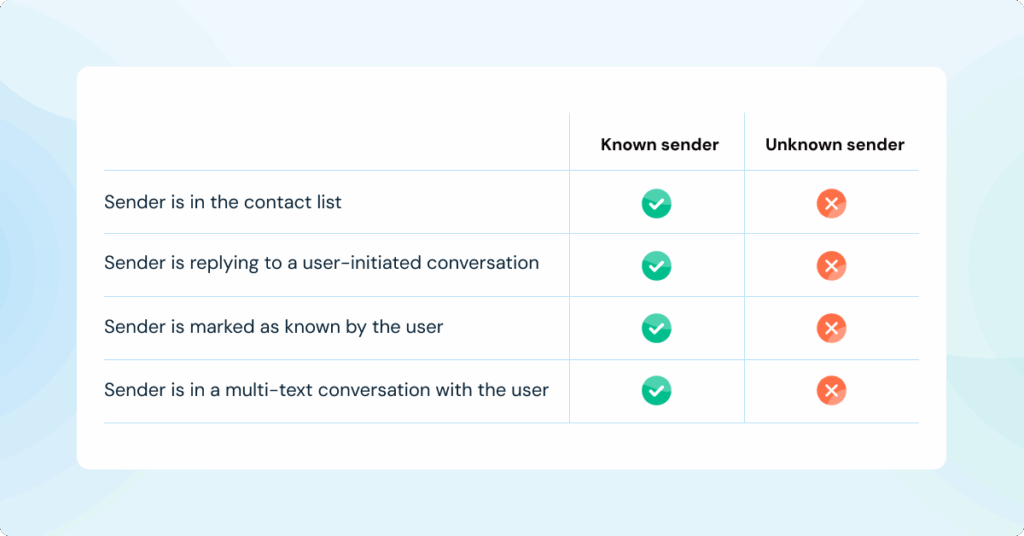
How iOS 26 identifies known vs. unknown senders
Refer to these criteria as you rethink your strategy for working around the iOS messaging filters and avoiding becoming invisible in the inbox.
The impact of the new iOS message filters
The user benefit: iPhone users enjoy a cleaner, calmer iOS messaging experience. Random numbers no longer clutter their primary inbox or trigger nonstop notifications throughout the day. Previously, all texts from unknown senders and spammers were forced into their view. Now, users control who appears in their main conversation list, and they can check the Unknown Senders and Spam folders only when they choose to.
The business challenge: Legitimate messages still get delivered, but they risk being buried alongside actual spam. Appointment reminders, order updates, booking confirmations, security alerts, and marketing campaigns could end up in inboxes that customers may check too late or not at all. When messages go unseen, customers get frustrated thinking texts never came, and businesses miss revenue opportunities.
It’s not all doom and gloom, though. If anything, iOS 26 message features signal to businesses what users want: communication from companies they know and trust. The real challenge is how to earn both.
What you can do to maximize inbox visibility
The iOS messaging update is not meant to screen out legitimate businesses. Apple simply aims for iPhone users to “stay connected while eliminating distractions.” And even if getting seen largely depends on customers taking action, there are ways to nudge them into recognizing you as a known sender.
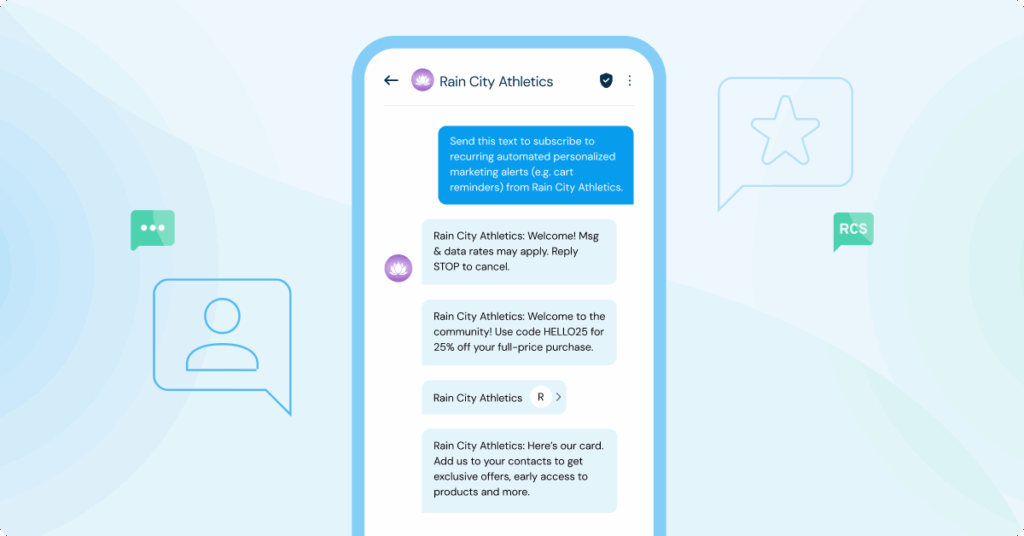
1. Send a contact card to make it easy for recipients to save your phone number
Optimize onboarding flows to include a request for contact saving. Attach the vCard in welcome messages, paired with copy that doesn’t come across as pushy.
2. Build your opt-in playbook around user-initiated action
Instead of sending the first text like “Reply Y to confirm,” design your sign-up flows so the customer starts the message thread. For example, when someone signs up for your messages online, have your CTA open their iOS messaging app with a text prewritten and ready to send.
3. Consider RCS with branded, verified sending as a standard SMS alternative
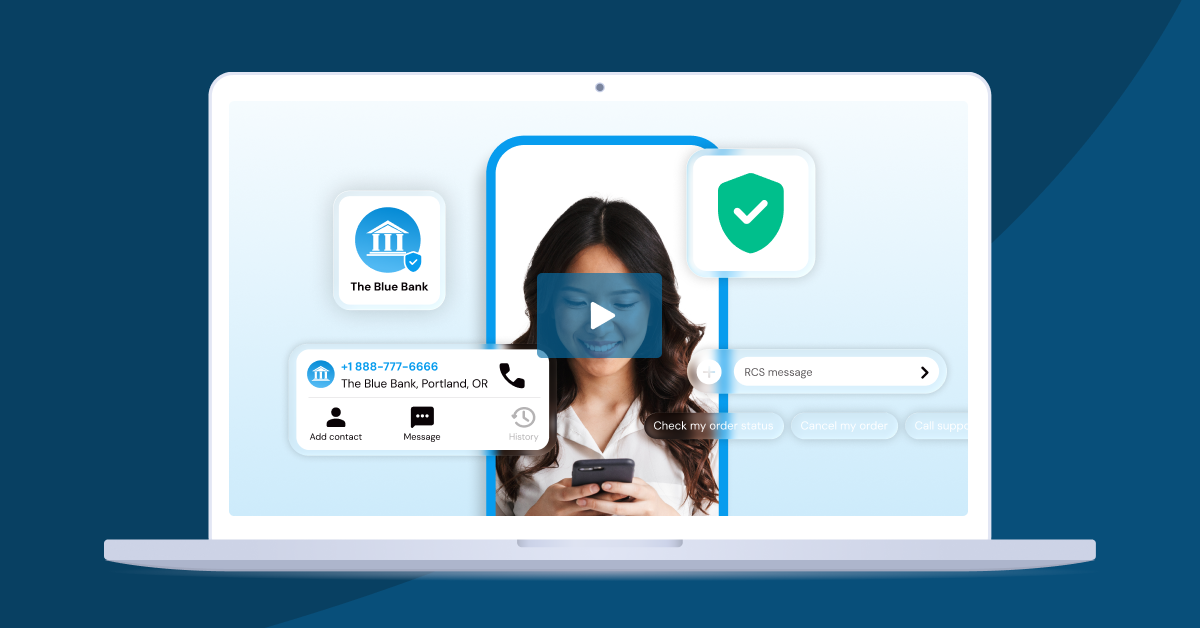
Rich Communication Services (RCS) shows trust signals, such as logo, check mark, and your brand name, rather than an unrecognizable number. This reassures users they’re not talking to unknown senders. RCS and SMS can also work side by side as part of a multichannel strategy.
Stay seen in the iOS messaging app
With iOS 26 messaging, businesses have to put extra effort into grabbing attention and keeping users engaged. Over the next few weeks, keep close watch on your numbers. If engagement dips, it could be a case of inbox invisibility—and we’ve got the tech fix. Discover how Bandwidth powers messaging, so your texts don’t fade in the background.